
Track your issues
Find your issues, read their status and priority, talk to the specialist, close them, and choose your notifications.
The Issues page
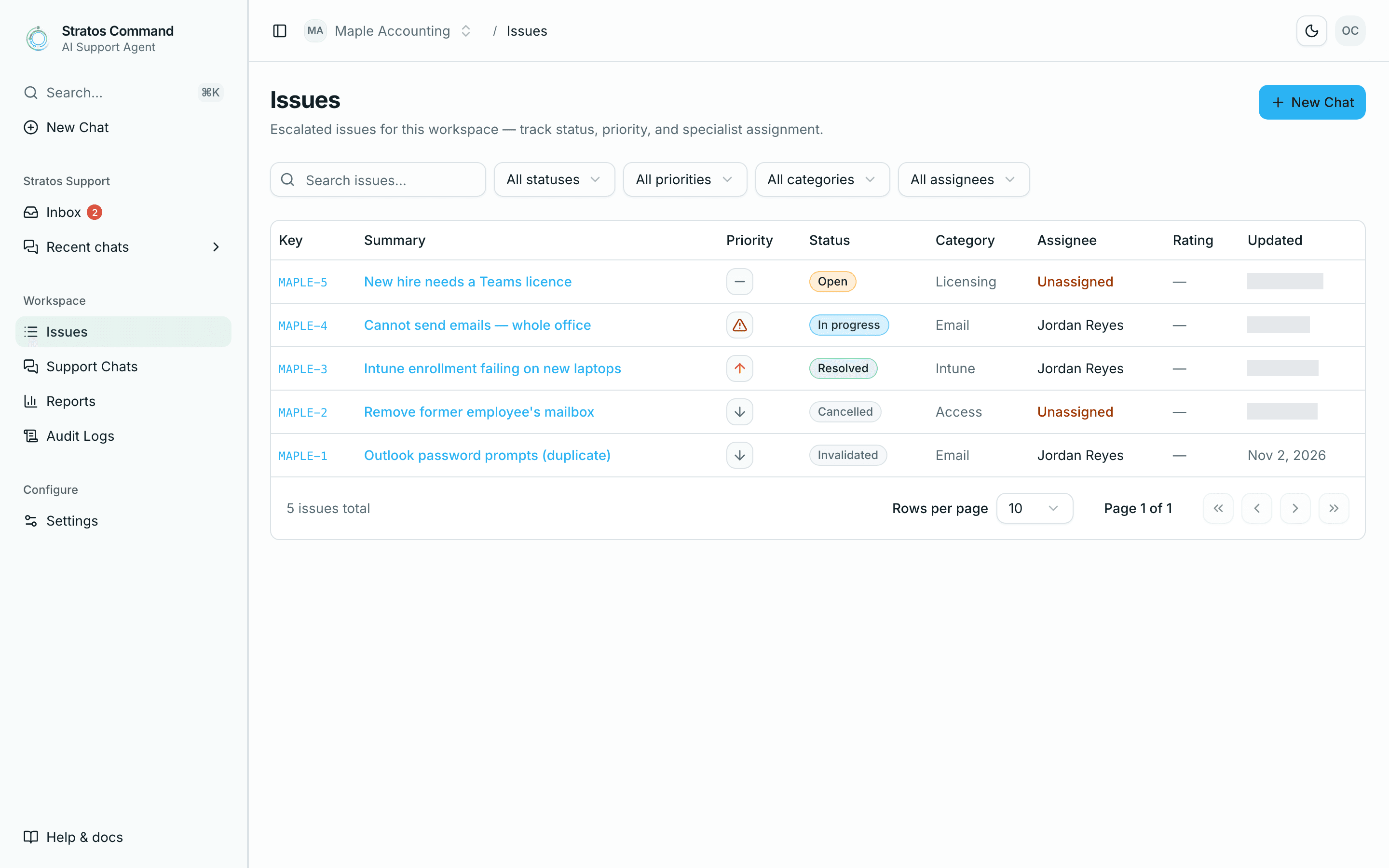
Issues in the sidebar lists every issue your organization has escalated, with its key, summary, priority, status, category and assignee. You can filter the list and open any issue.
Issue keys
Every issue gets a key made of your organization's prefix and a number, for example MAPLE-4. Numbers go up by one for each new issue in your organization. Quote the key whenever you talk to Stratos about the issue.
Issue details
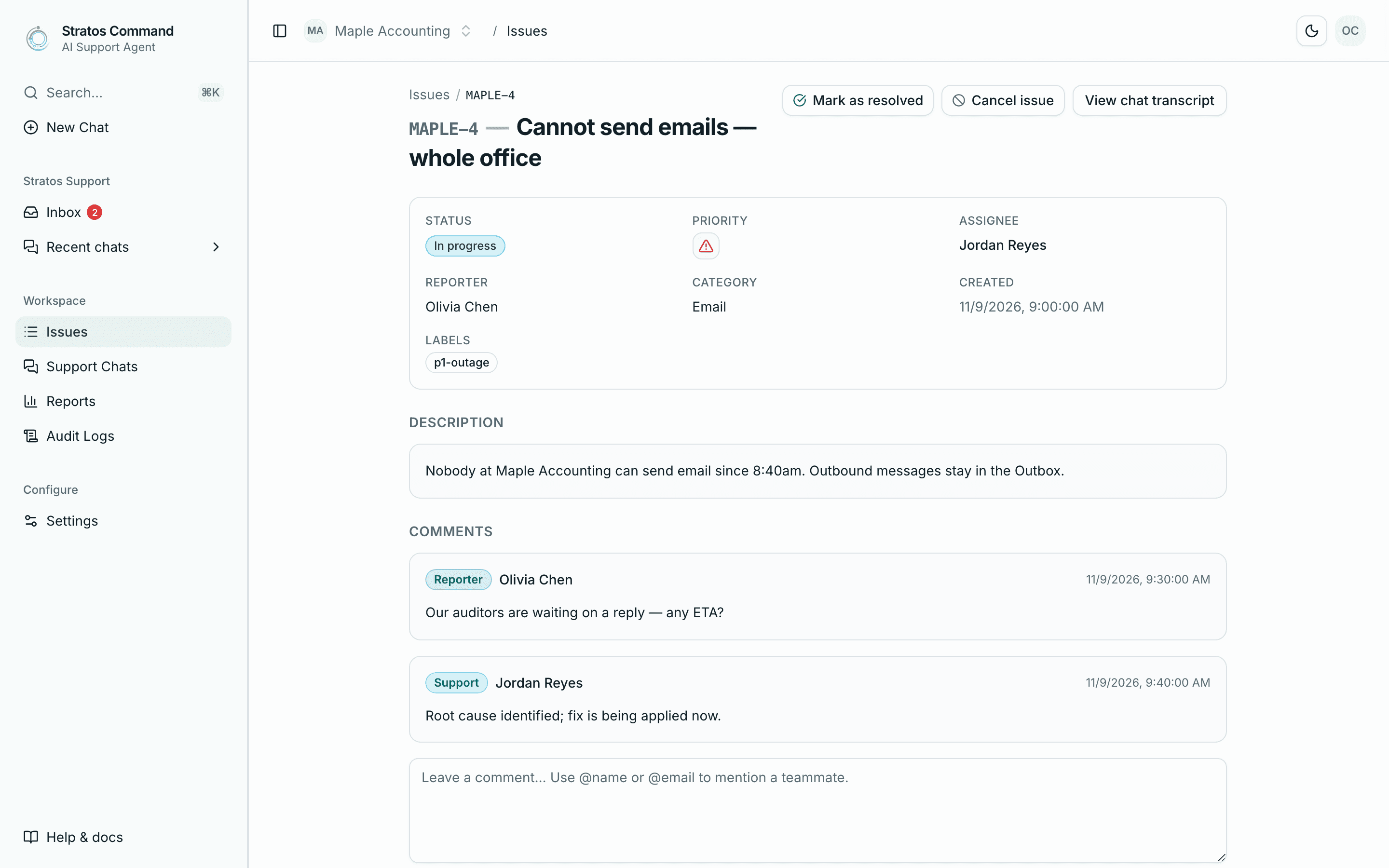
Open an issue to see its status, priority, assignee, reporter, category, labels, description and comments.
Status
| Status | Meaning |
|---|---|
| Open | Escalated and waiting for a specialist to pick it up. |
| In progress | A specialist is assigned and working on it. |
| Resolved | Fixed and closed. |
| Cancelled | Closed by the person who reported it, for example because it's no longer needed. |
| Invalidated | Closed by Stratos Support without action, for example a duplicate of another issue. |
Priority
Stratos sets a priority when the issue is created: Critical, Urgent, High, Normal or Low. Outages are always Critical. For how quickly each priority is answered, see response expectations.
Category
Each issue gets a category: Access, Email, Teams, Intune, Defender, Licensing or General.
Talk to the specialist
- In the chat: the specialist's replies appear in your original chat, labelled Support specialist. Use View chat transcript on the issue to open it.
- In comments: use the comment box on the issue ("Leave a comment… Use @name or @email to mention a teammate.") and select Post comment. Comments are a good place for updates that don't belong in the troubleshooting chat. Mentioning a teammate notifies them.
Close an issue
The person who reported the issue can close it from the issue page:
- Mark as resolved when the problem is fixed. You'll be asked to rate your experience.
- Cancel issue if you no longer need help.
Stratos Support can also mark an issue Invalidated, for example when it duplicates another issue.
Notifications
Updates arrive in your Inbox (sidebar, with an unread count):
- Issue escalated to support when your chat becomes an issue
- Specialist assigned to your issue
- New reply from support when a specialist replies in your chat
- New comment from support, and mentions from teammates
- Issue status updated and Issue resolved
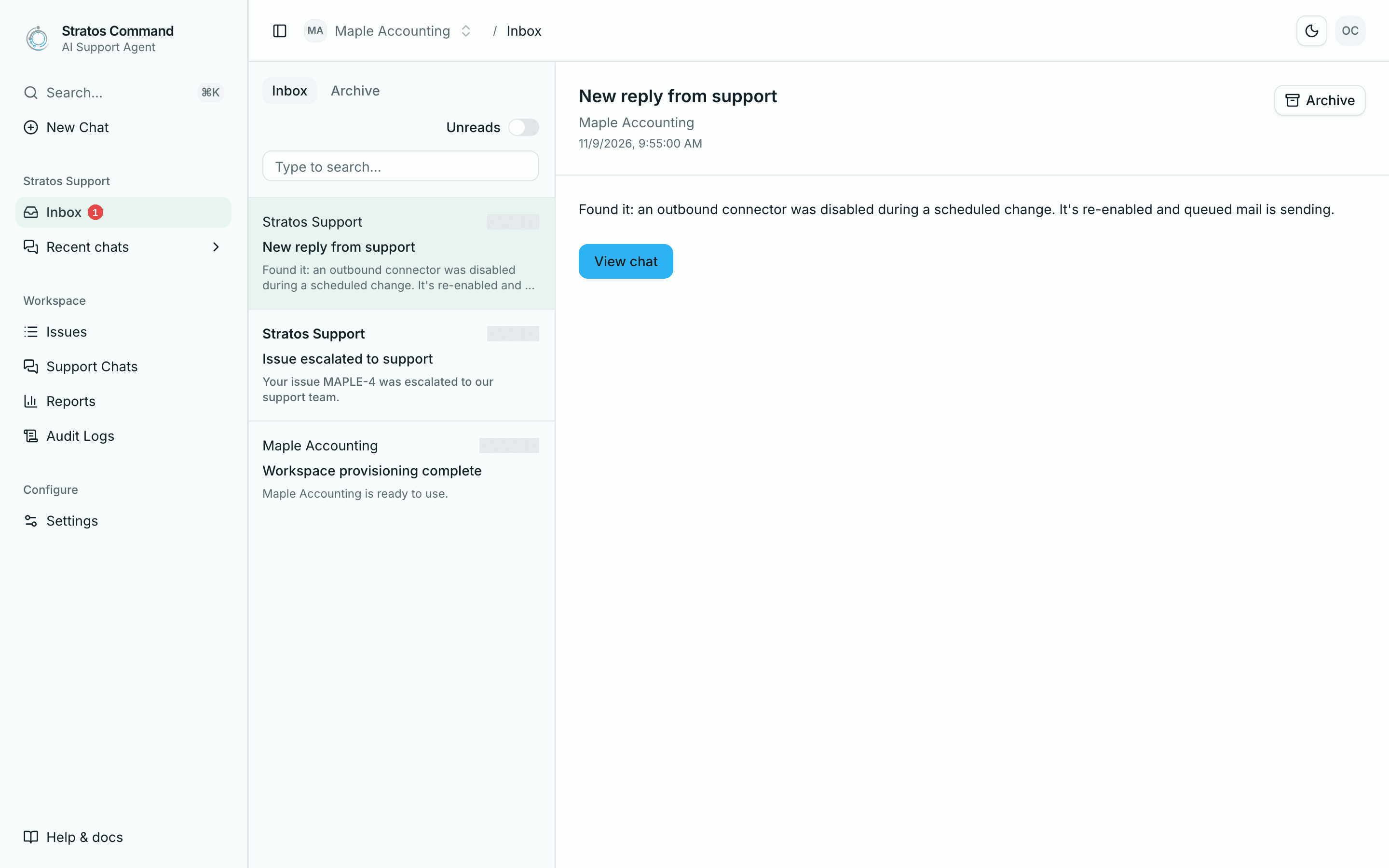
Support updates go to your Inbox only. Invitations, Provisioning needs your input, and billing alerts are also emailed. Choose what you receive under Settings → Notifications.
Last verified November 12, 2026