
Submit a support request
Start a chat with Stratos Support, what to include, attaching files, and how a chat becomes an issue for a specialist.
Start a chat
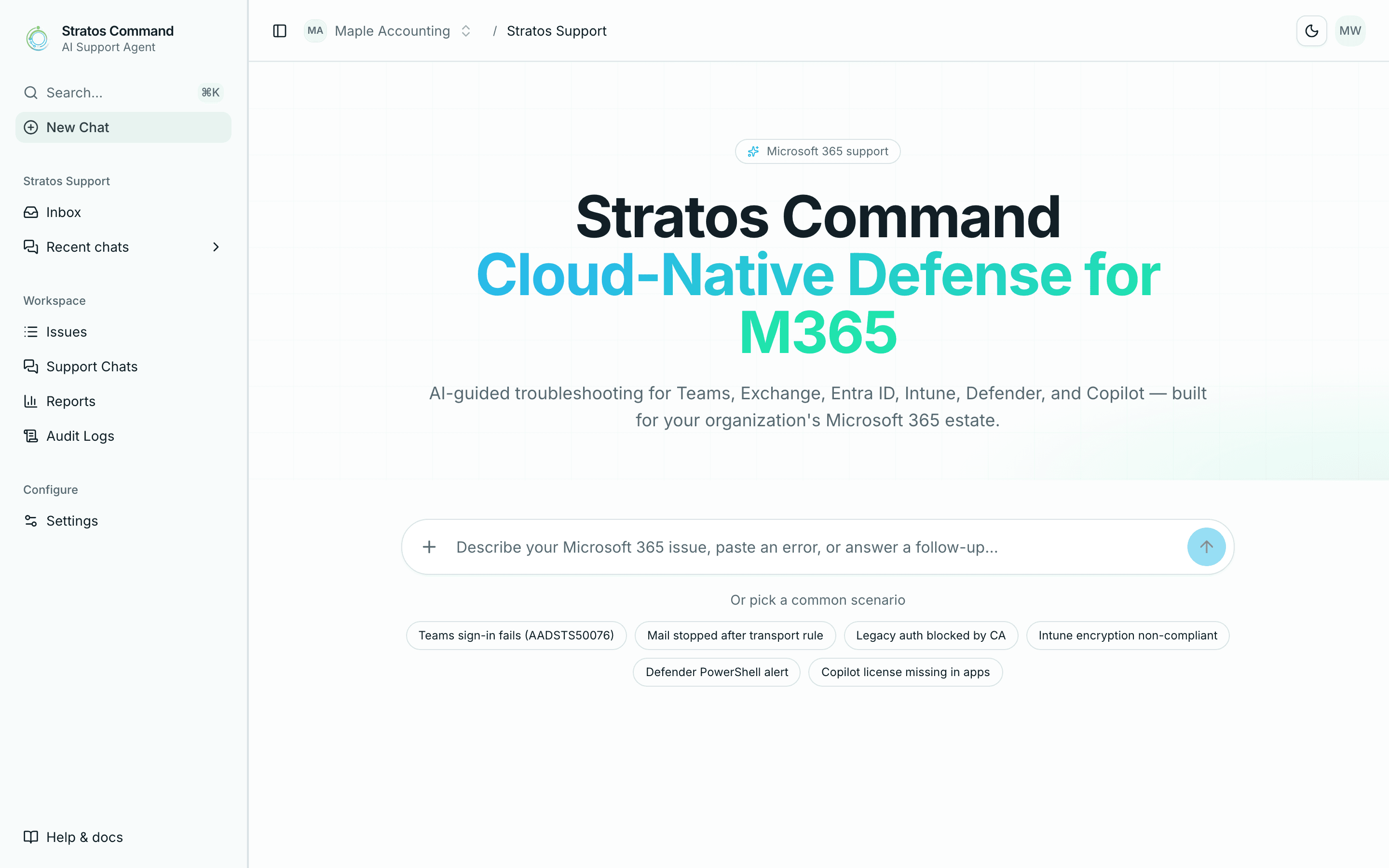
Select New Chat in the sidebar. Describe the problem in the message box ("Describe your Microsoft 365 issue, paste an error, or answer a follow-up…") and press Enter, or select the send button.
Is email down for everyone?
If you describe an outage, such as "Exchange down", "cannot send emails", "cannot receive emails", "mail flow blocked" or "server down", the chat skips troubleshooting and goes straight to a specialist as a critical issue. See Escalation.
What to include
The more specific your first message, the faster you'll get to a fix:
- What's wrong, in your own words: what you tried and what happened instead.
- The exact error message or code, for example
0x80180014orAADSTS65001. Paste it rather than paraphrasing. - Who's affected: just you, several people, or everyone.
- Where: which app (Outlook, Teams, OneDrive…), which device, desktop or web, and which network.
- When it started, and anything that changed around then (a password change, a new device, an update).
- A screenshot or log file, if you have one (see Attachments).
Never paste passwords, one-time codes or recovery keys into a chat.
How the conversation works
Stratos Support works through your problem in stages:
A few questions
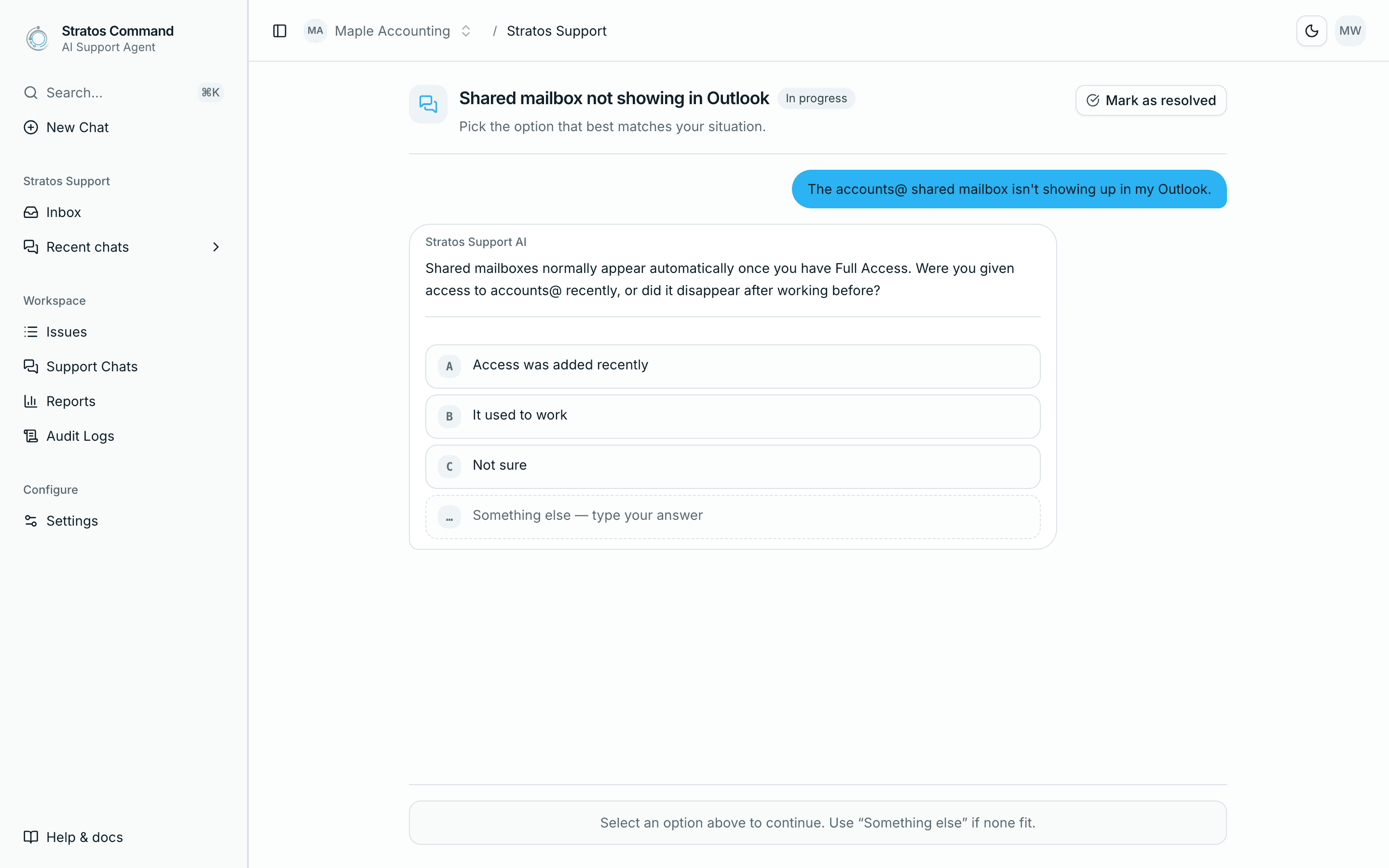
It asks one question at a time and offers answers you can tap. If none fits, choose Something else — type your answer.
Findings
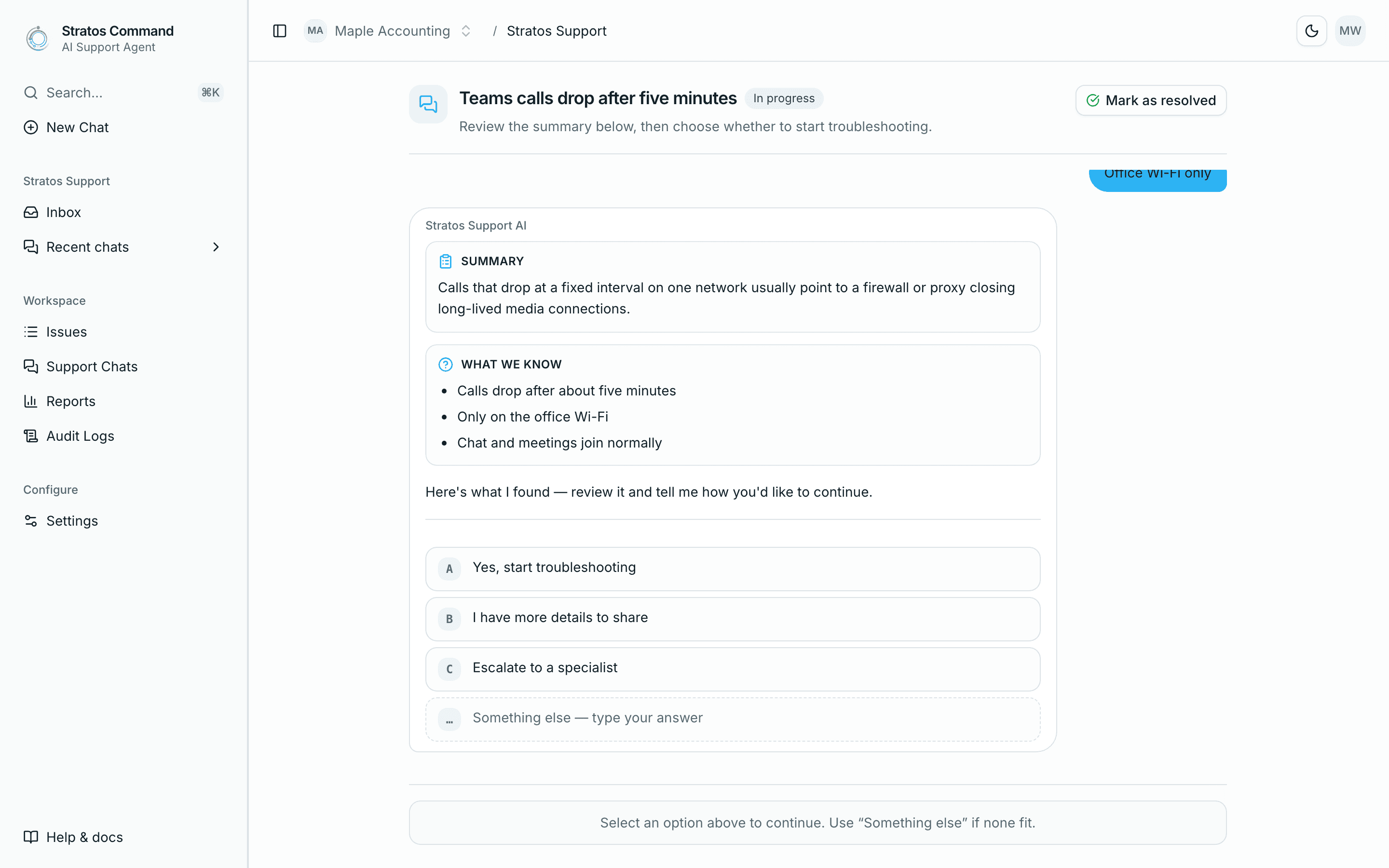
It summarizes what it has learned (Summary and What we know) and asks how you'd like to continue: Yes, start troubleshooting, I have more details to share, or Escalate to a specialist.
Guided troubleshooting
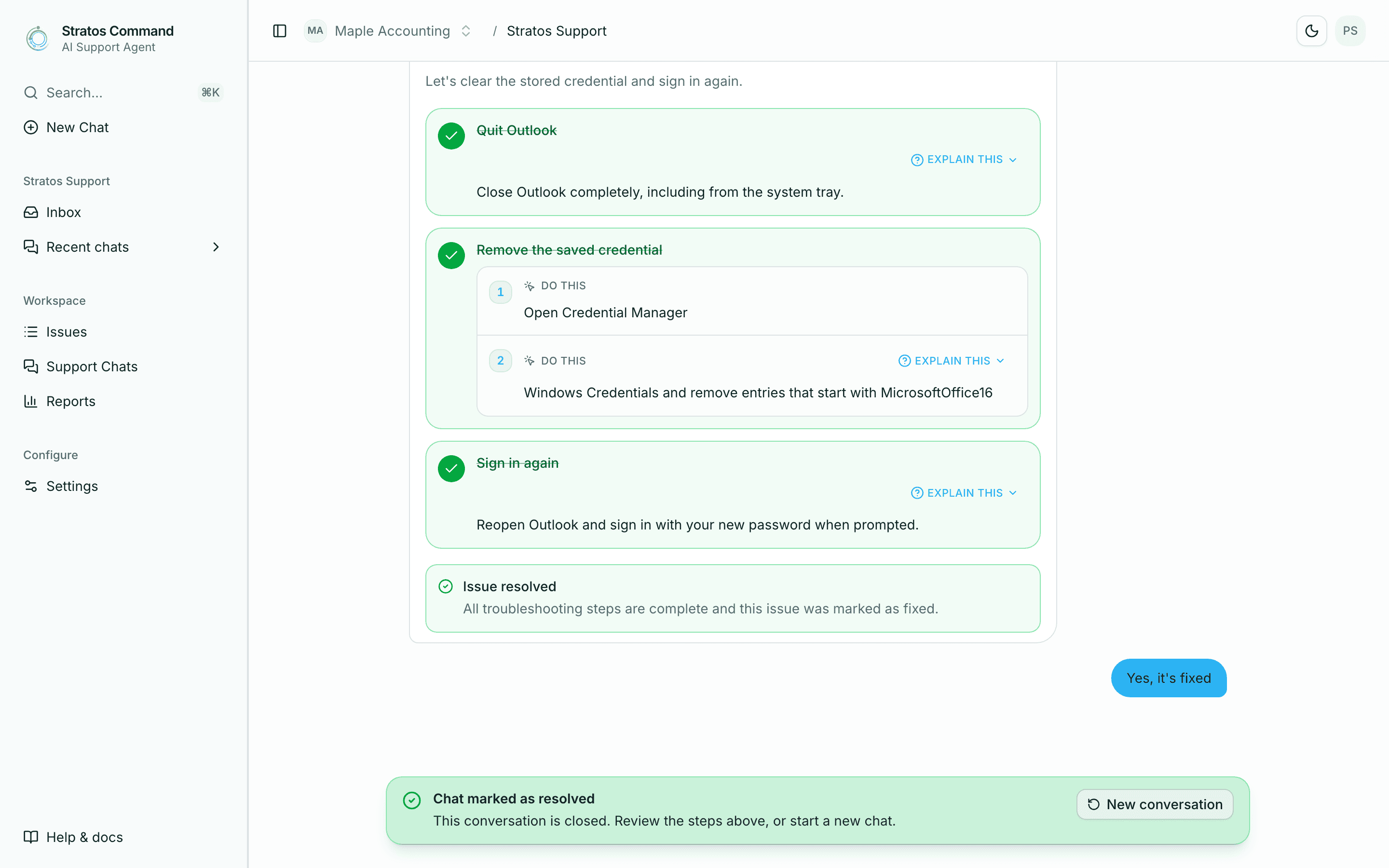
It gives you a short checklist of safe steps to try. When you've finished, it asks whether the problem is fixed: Yes, it's fixed, No — try another approach, or Create issue for a specialist.
Resolved
If it's fixed, the chat is marked resolved and you can rate your experience (How was your support experience?). You can also select Mark as resolved at the top of the chat at any time.
Turn a chat into an issue
When a person needs to step in, choose Escalate to a specialist (from the findings) or Create issue for a specialist (after troubleshooting). Stratos creates an issue from the conversation and hands it to the Stratos support team. The chat shows Escalated to support with a link to the new issue.
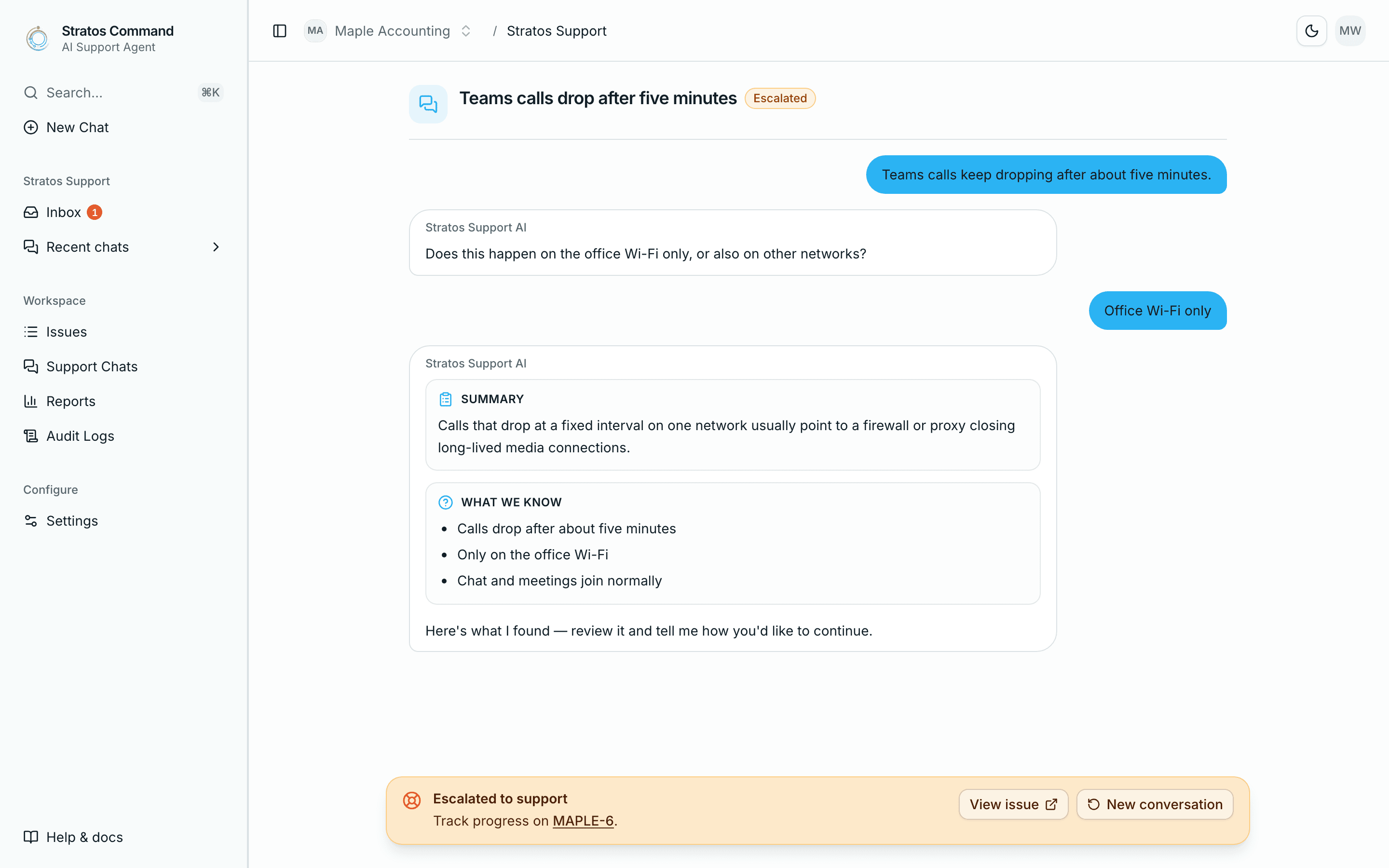
- There's no separate "new ticket" form. Every issue starts as a chat, so the specialist sees everything you've already tried.
- You can escalate your own chats. Owners and Admins can also escalate a teammate's chat.
- The specialist replies in the same chat and on the issue. See Track your issues.
Attachments
Use the paperclip button (Attach file) in the chat to add a file:
- Images (JPEG, PNG, WebP, GIF), text and logs (
.txt,.log), CSV and JSON. - Up to 10 MB per file.
Your chats
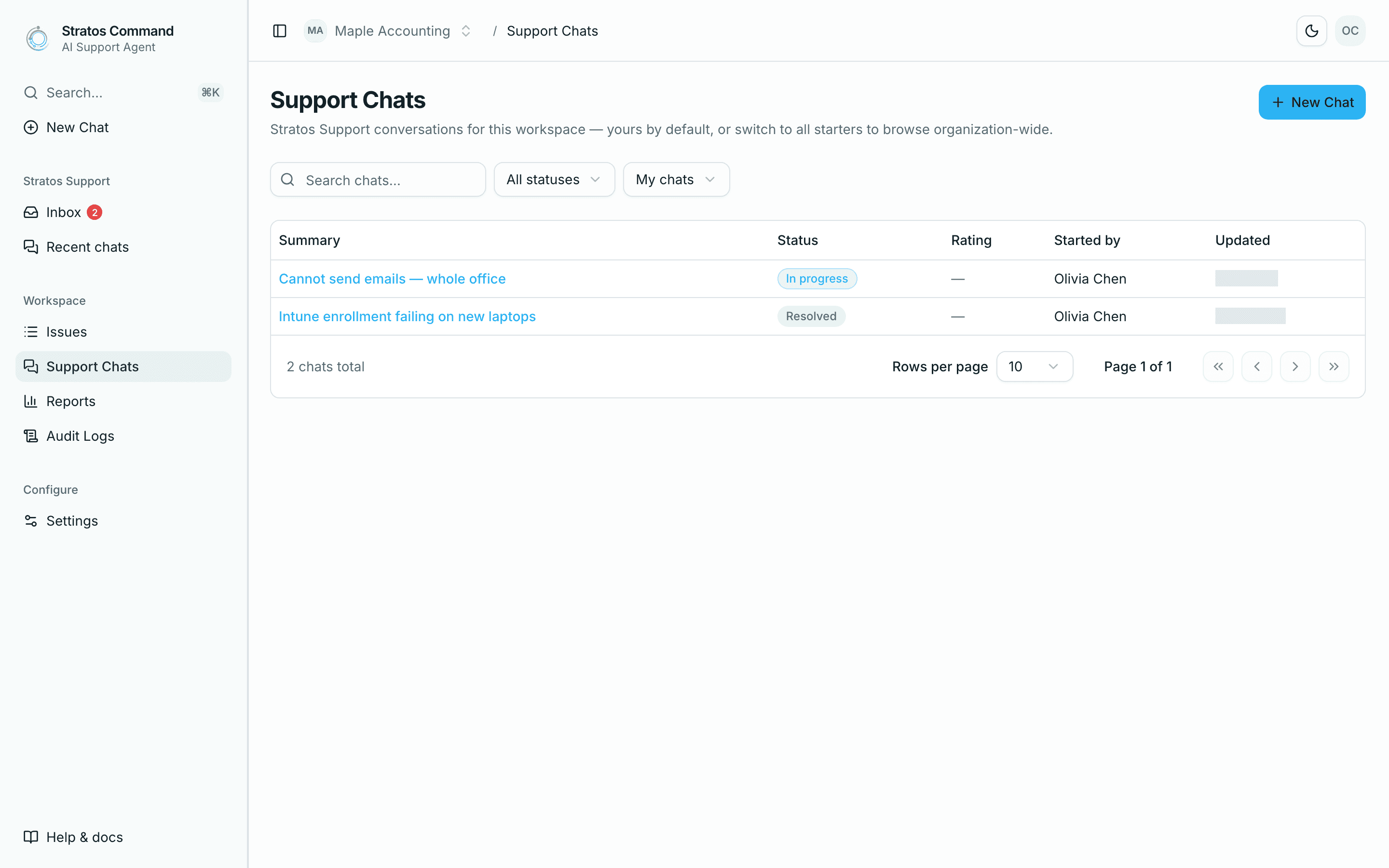
Every conversation in your organization is listed under Support Chats. Your own recent chats are also in the sidebar under Recent chats.
Last verified November 12, 2026