
Escalation to a specialist
When a chat is handed to a Stratos L2 specialist, what you'll see while it's worked on, and how quickly to expect a response.
When escalation happens
There are three ways a chat reaches a specialist.
You ask for one
At any point where Stratos Support offers it, choose Escalate to a specialist or Create issue for a specialist. Do this when:
- the suggested steps didn't fix it;
- the fix needs admin access to your Microsoft 365 tenant (licences, mailbox permissions, policies), which we handle for you;
- you'd simply rather talk to a person.
If a problem isn't solved after a few rounds of troubleshooting, Stratos Support suggests handing it over.
Outages are escalated automatically
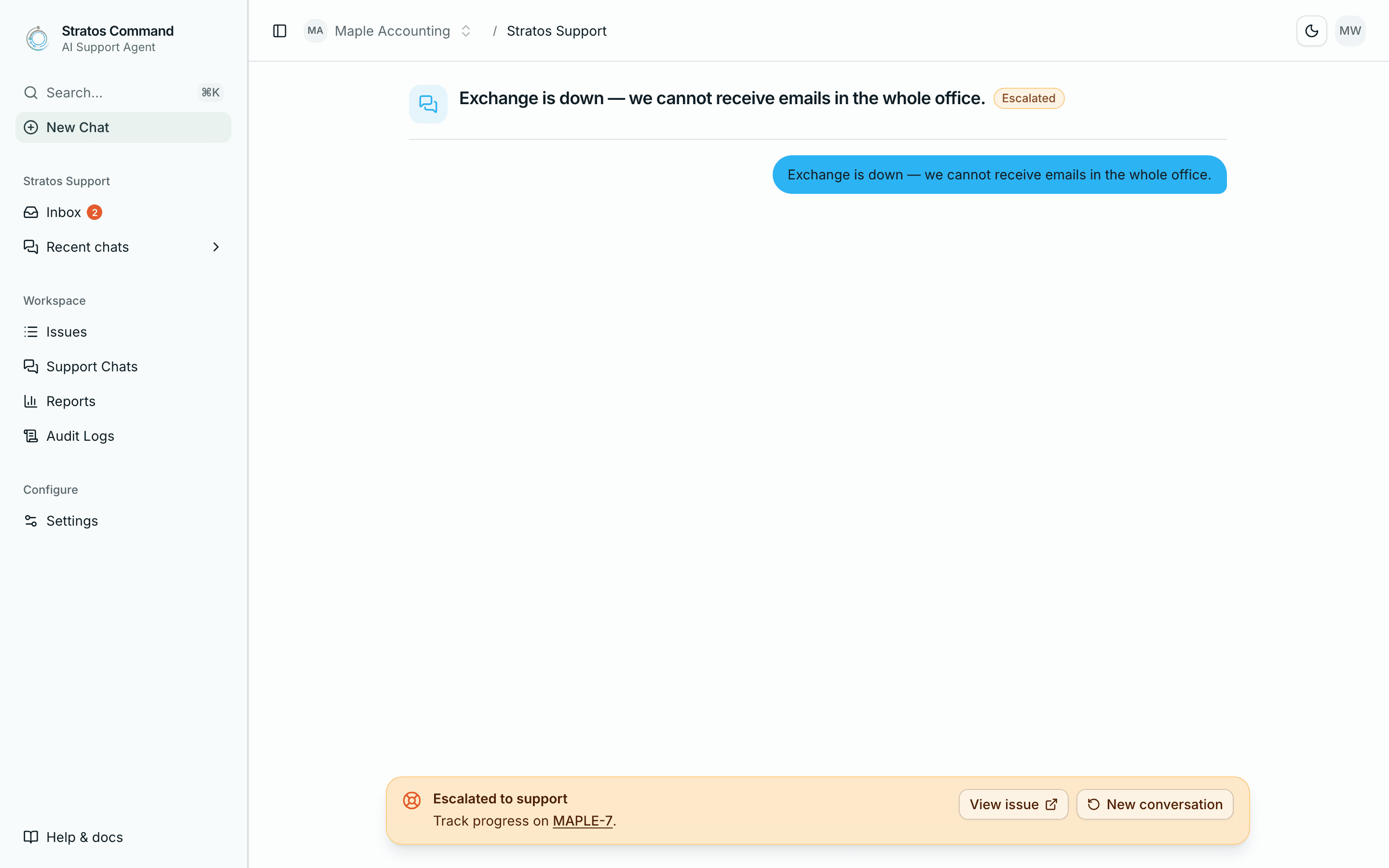
If your message describes an email outage, Stratos skips troubleshooting and creates a Critical issue straight away. You'll briefly see Critical issue detected while it's created. Phrases that trigger this include:
- Exchange down
- Server down
- Mail flow blocked
- Cannot send emails
- Cannot receive emails
Device compliance problems
For device compliance problems (a non-compliant device, a BitLocker failure, an encryption policy, or a Conditional Access block), Stratos Support first walks you through a device sync. If that doesn't restore compliance, it escalates the issue as High.
What you'll see
The chat is marked Escalated
A banner says Escalated to support and shows your issue key. Select View issue to open it, or New conversation to start something else. You'll also get an Issue escalated to support notification in your Inbox.
A specialist picks it up
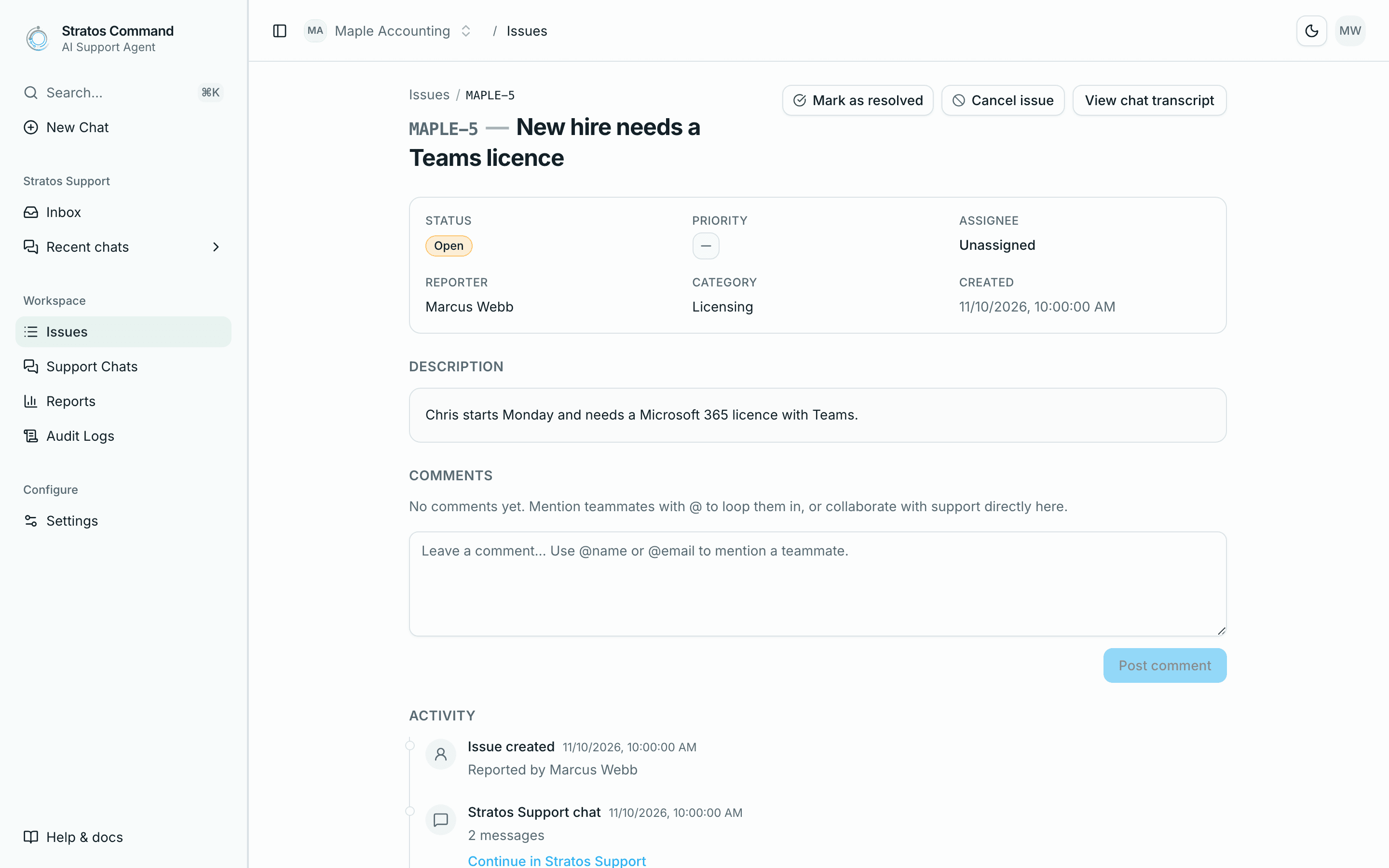
While nobody is assigned, the issue is Open. When a specialist takes it, it changes to In progress, their name appears as Assignee, and you're notified (Specialist assigned to your issue).
The specialist works with you
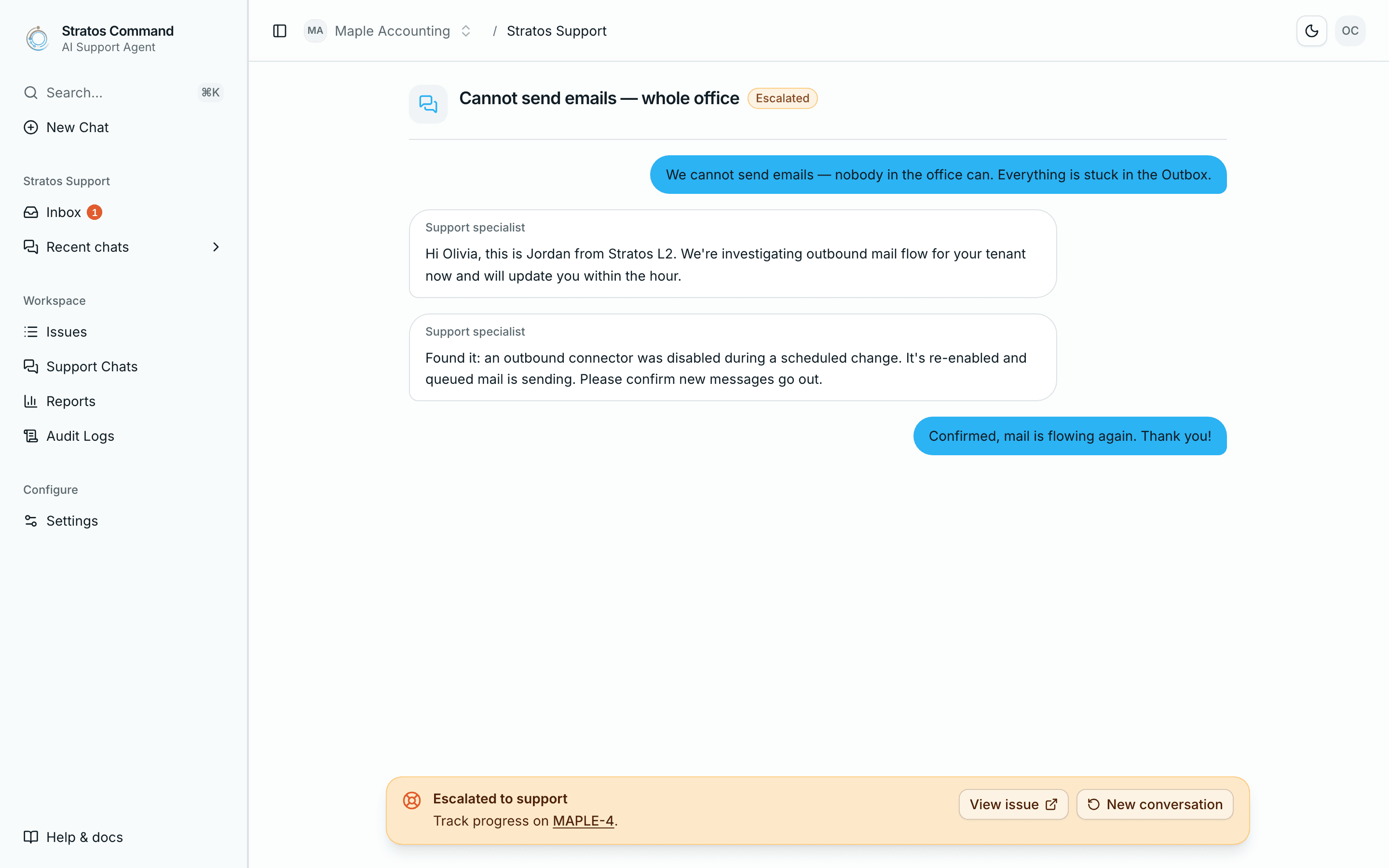
Replies from the specialist appear in your chat, labelled Support specialist, and as comments on the issue. Answer in either place.
Resolution
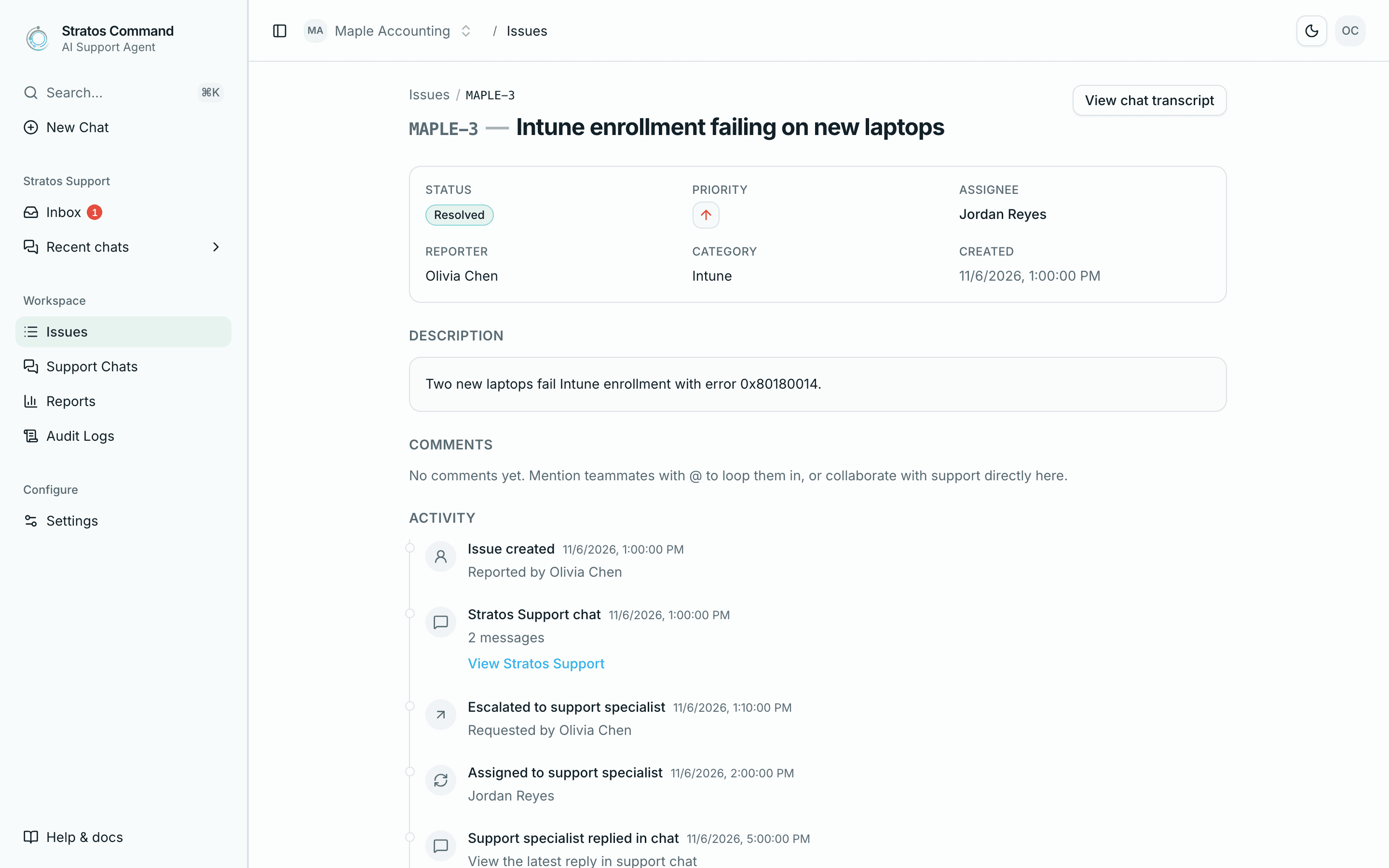
When it's fixed, the person who reported the issue selects Mark as resolved on the issue and rates the experience. The issue becomes Resolved.
Response expectations
Placeholder
| Priority | First response | Updates |
|---|---|---|
| Critical | To be confirmed | To be confirmed |
| Urgent | To be confirmed | To be confirmed |
| High | To be confirmed | To be confirmed |
| Normal | To be confirmed | To be confirmed |
| Low | To be confirmed | To be confirmed |
Support hours
Placeholder
Who handles escalations
Placeholder
Tips
- One problem per chat. Start a New Chat for something unrelated so each issue has a clear owner and history.
- Add new information as a comment on the issue rather than starting a new chat.
- If an issue is no longer needed, select Cancel issue so the specialist can move on.
Last verified November 12, 2026