
Workspace readiness
Check your workspace is ready, understand what each role can do, and add teammates, seats and single sign-on.
Ready checklist
Your organization is ready to use Stratos when:
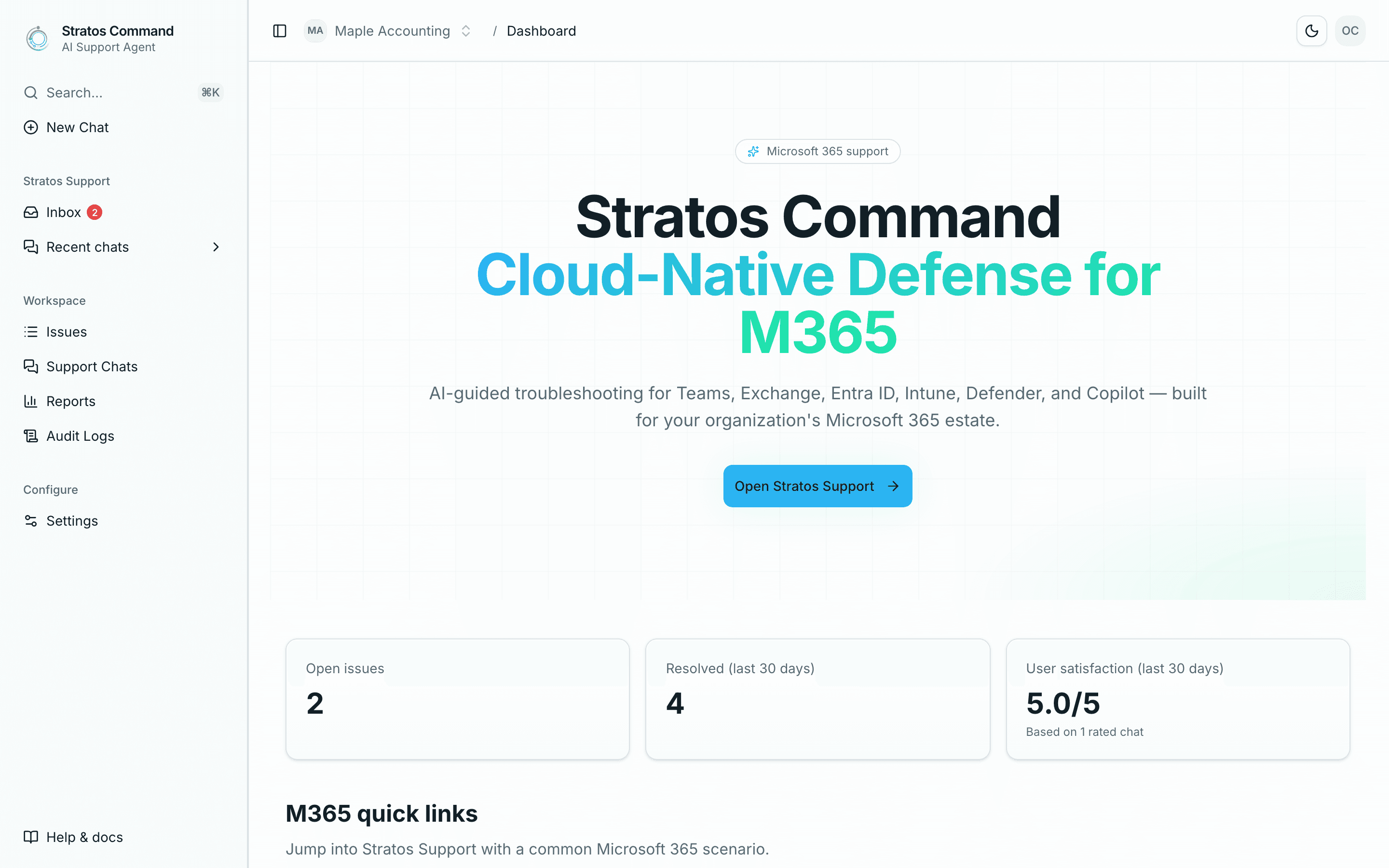
- Onboarding shows Completed (see Onboarding status).
- Your Owner can open the Dashboard.
- Everyone who needs help has joined. Check Settings → Team → Members.
- You have enough seats for the people you still want to invite.
- Each person can start a chat from New Chat.
- (Optional) Single sign-on is connected, if your organization uses it.
Roles and what they can do
Every member has one role: Owner, Admin or Member.
| What | Owner | Admin | Member |
|---|---|---|---|
| Chat with Stratos Support, view Issues, Support Chats, Reports and Inbox | ✓ | ✓ | ✓ |
| Escalate their own chats to a specialist | ✓ | ✓ | ✓ |
| Escalate a teammate's chat | ✓ | ✓ | — |
| See Settings → Team | ✓ | ✓ | View only |
| Invite and remove members, change roles | ✓ | ✓ | — |
| Audit Logs, General, Key contact and Billing settings | ✓ | ✓ | — |
| SSO settings | ✓ | — | — |
The sidebar shows only what your role can use. Compare an Owner's sidebar with a Member's:
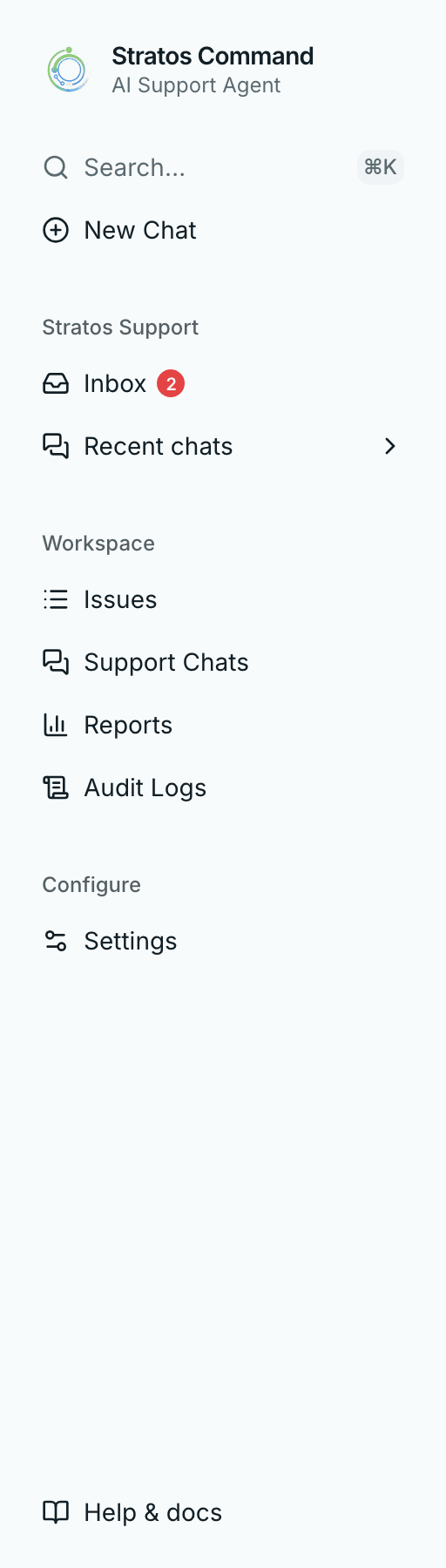
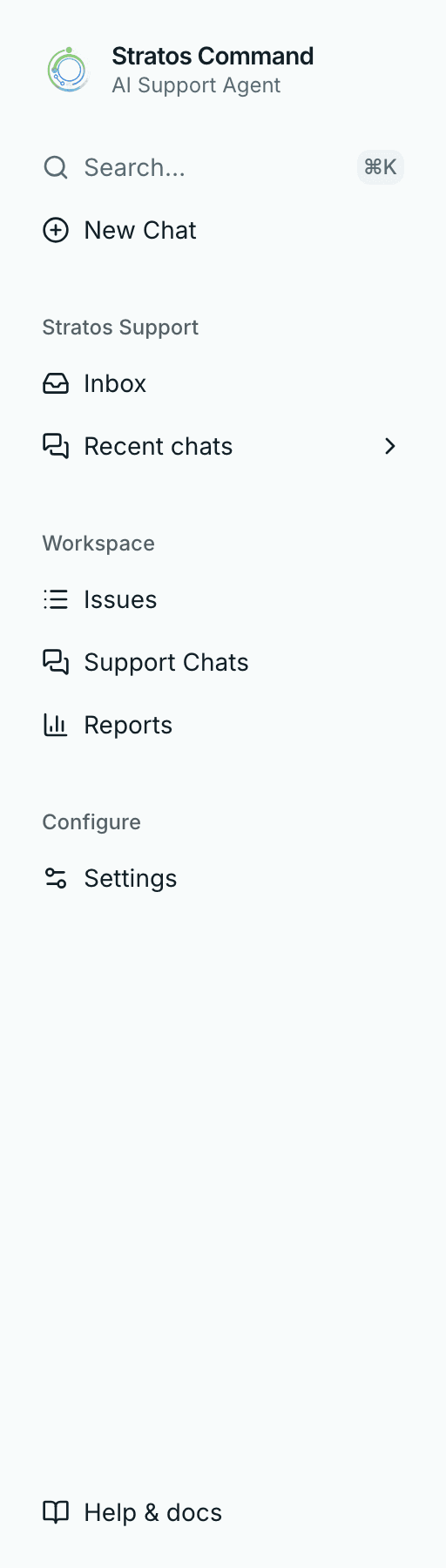
Your own preferences are under Settings → My Account: Profile, Preferences and Notifications. All roles have these.
Add teammates
Owners and Admins can invite people once onboarding is complete.
Go to Settings → Team. The header shows how many seats you're using, for example 3 of 10 seats used.
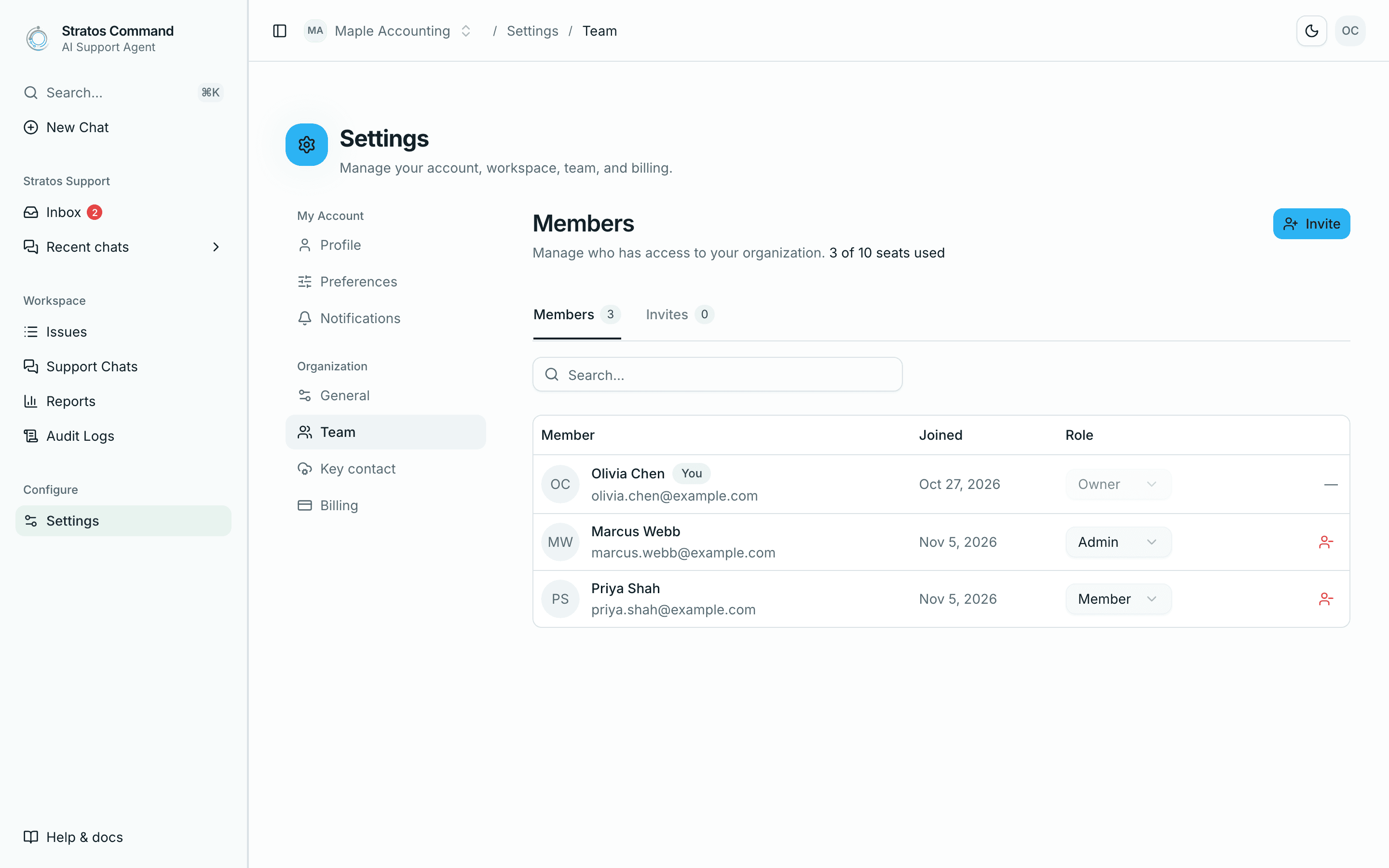
Select Invite, enter the person's email, choose a role (Member or Admin), and select Send invitation.
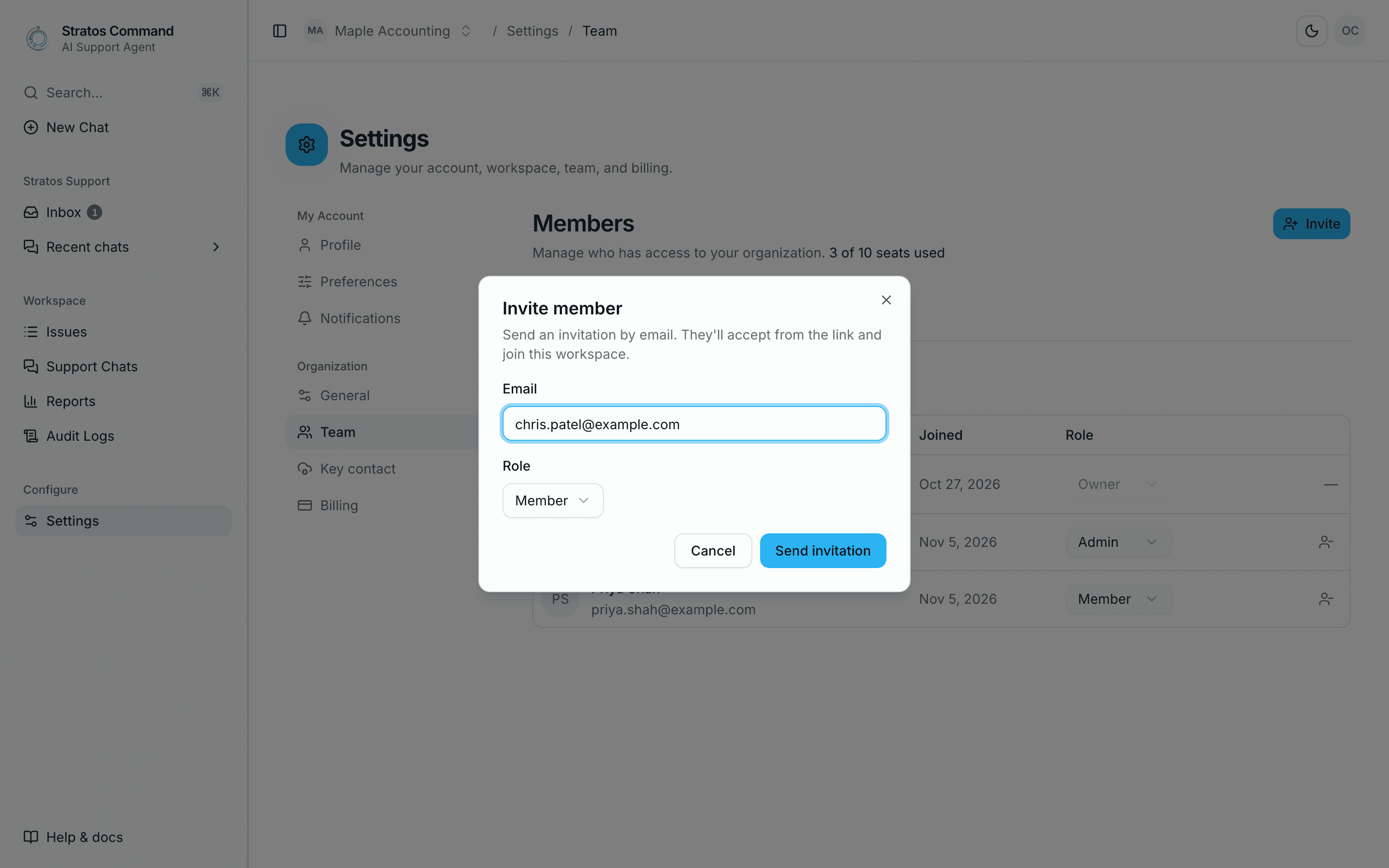
They get an email and follow Activate your account. Until they accept, they're listed on the Invites tab, where you can copy the invite link, resend it, or revoke it.
Seats
- Every member and every pending invitation uses a seat.
- When all seats are used, invitations are blocked with "All purchased seats are in use. Add seats in Billing settings to invite more members."
- Owners and Admins can add seats under Settings → Billing (Seats → New seat total → Add seats).
- Revoking an unused invitation frees its seat.
Single sign-on (SSO)
If your organization uses a SAML identity provider (for example Microsoft Entra ID), the Owner can connect it under Settings → SSO. You provide your SSO email domain plus either the IdP metadata XML or a Metadata URL. Members then sign in with Sign in with SSO. SSO requires a Pro subscription.
Placeholder
Two-factor authentication
Stratos doesn't yet let you turn on two-factor authentication yourself. If your account has it enabled, sign in with an email link instead (Email me a sign-in link instead).
Last verified November 12, 2026