
Getting started
Onboarding status
Follow your Microsoft 365 workspace setup, and learn what each onboarding status means and what to do next.
While Stratos Support sets up your Microsoft 365 workspace, your organization's Owner sees the Setting up your workspace page instead of the normal workspace. It refreshes on its own every 30 seconds, so you can leave it open.
You'll use the full workspace once onboarding is Completed.
The four steps
The page is a timeline:
- Organization provisioned. Your company name, URL slug, seat count and the date your subscription started. Use Edit to fix the company name or slug.
- Team. Your key contact (added automatically as the workspace Owner) and the teammates you want set up, each with a name, email and optional phone. Use Add teammate and Save team. You can add as many people as you have seats.
- Submit for provisioning. When your details are right, select Submit for provisioning. Your key contact's name, email and phone number are required before you can submit. Submitting locks your details and notifies Stratos Support.
- Stratos Support activity. Progress updates from our team, newest first. If you have questions, use Questions? Contact Stratos support.
Steps 1–3 can only be edited while your status is Intake required or Needs customer input. Until you submit, they show a Draft badge.
What each status means
| Status | What's happening | What you do |
|---|---|---|
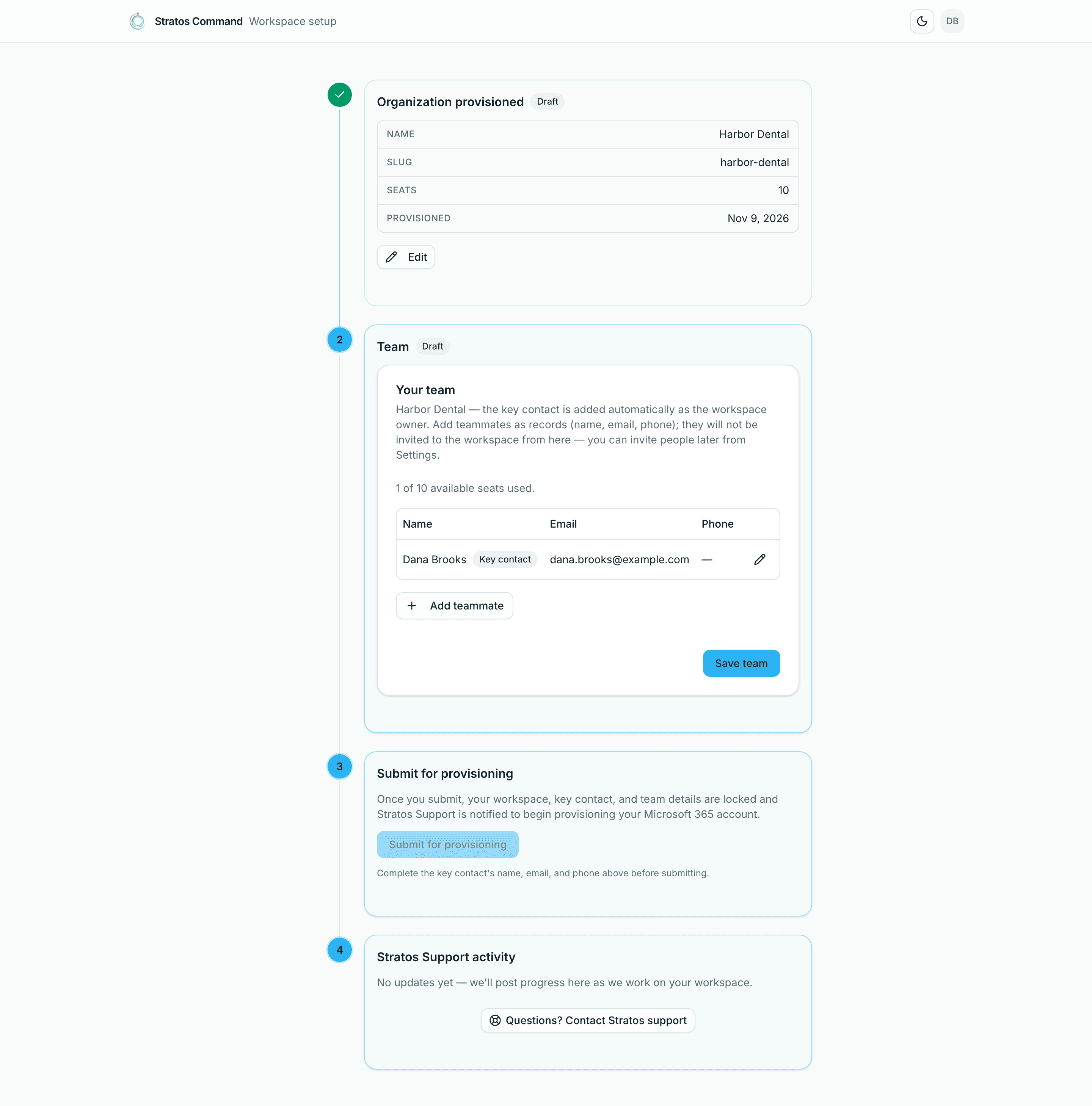
| Intake required | We're waiting for your organization and team details. | Check steps 1–2, then select Submit for provisioning. |
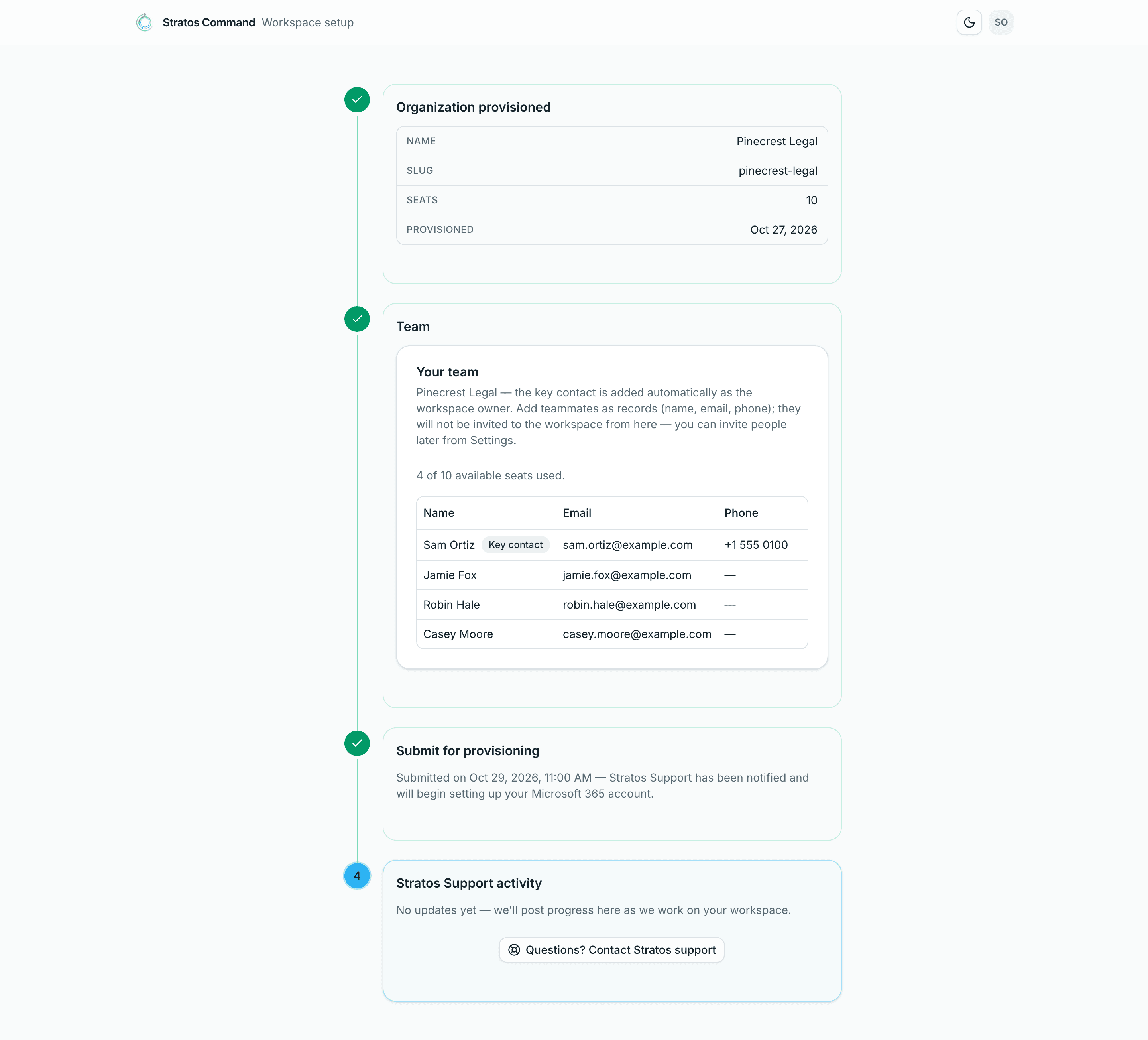
| Pending review | You've submitted. Stratos Support is reviewing your details. | Nothing. Watch Stratos Support activity for updates. |
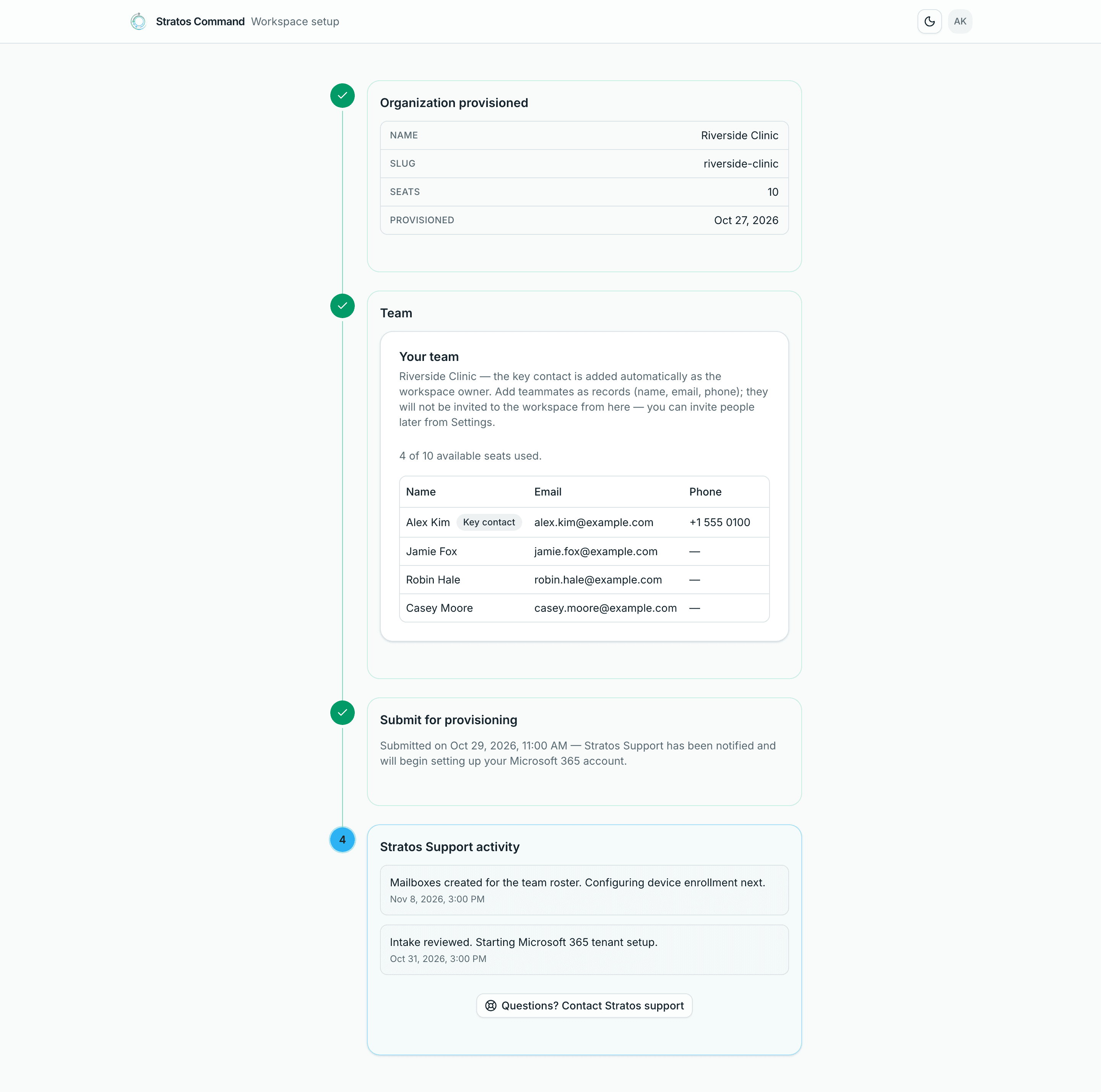
| In progress | We're setting up your Microsoft 365 tenant, mailboxes and licences. | Nothing, unless we ask. You'll see progress posted as we go. |
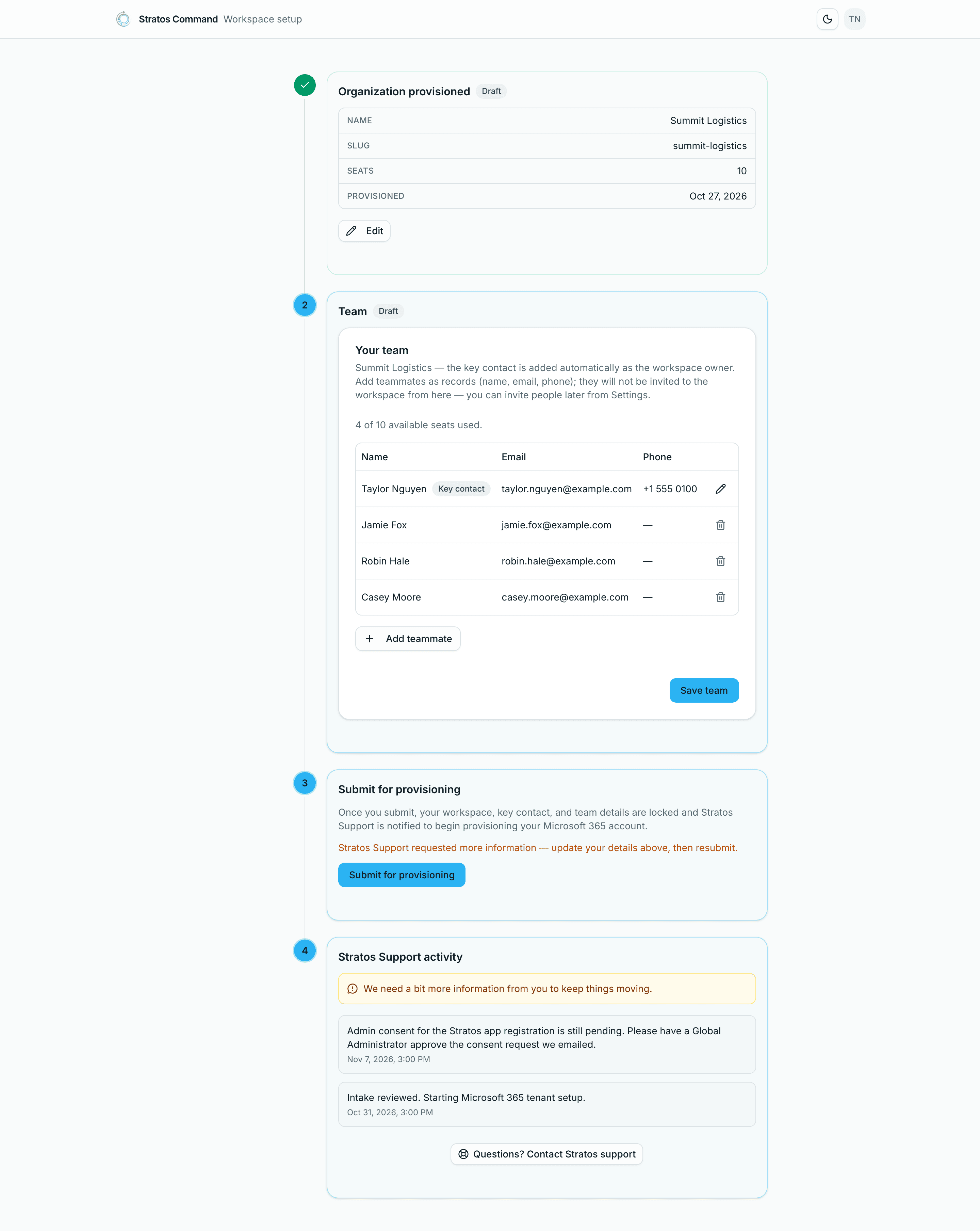
| Needs customer input | We need something from you to keep going. Our message explains what. | Read the latest update, change your details if asked, and resubmit. You'll also get an inbox notification and an email (Provisioning needs your input). |
| Completed | Your workspace is ready. | Sign in and start using Stratos. Your team roster is invited automatically, and you'll get a Workspace provisioning complete notification. |
Intake required
Pending review
In progress
Needs customer input
How long does setup take?
Placeholder
To be confirmed: typical time from submission to completion.
Who sees this page
- Only the Owner is redirected to the onboarding page until setup is complete.
- Team invitations from Settings → Team open once onboarding is complete. Until then, people you add in step 2 are recorded but not invited; they're invited automatically when setup finishes.
- Your key contact details are also under Settings → Key contact (Owners and Admins).
Last verified November 12, 2026